Before you begin
Have World of Warcraft installed and ask your chapter administrator for your chapter ID and chapter API key. Treat the API key like a password: never post it in public chat or screenshots.
You only configure this once. The Companion saves its settings and can keep the addon updated afterward.
1
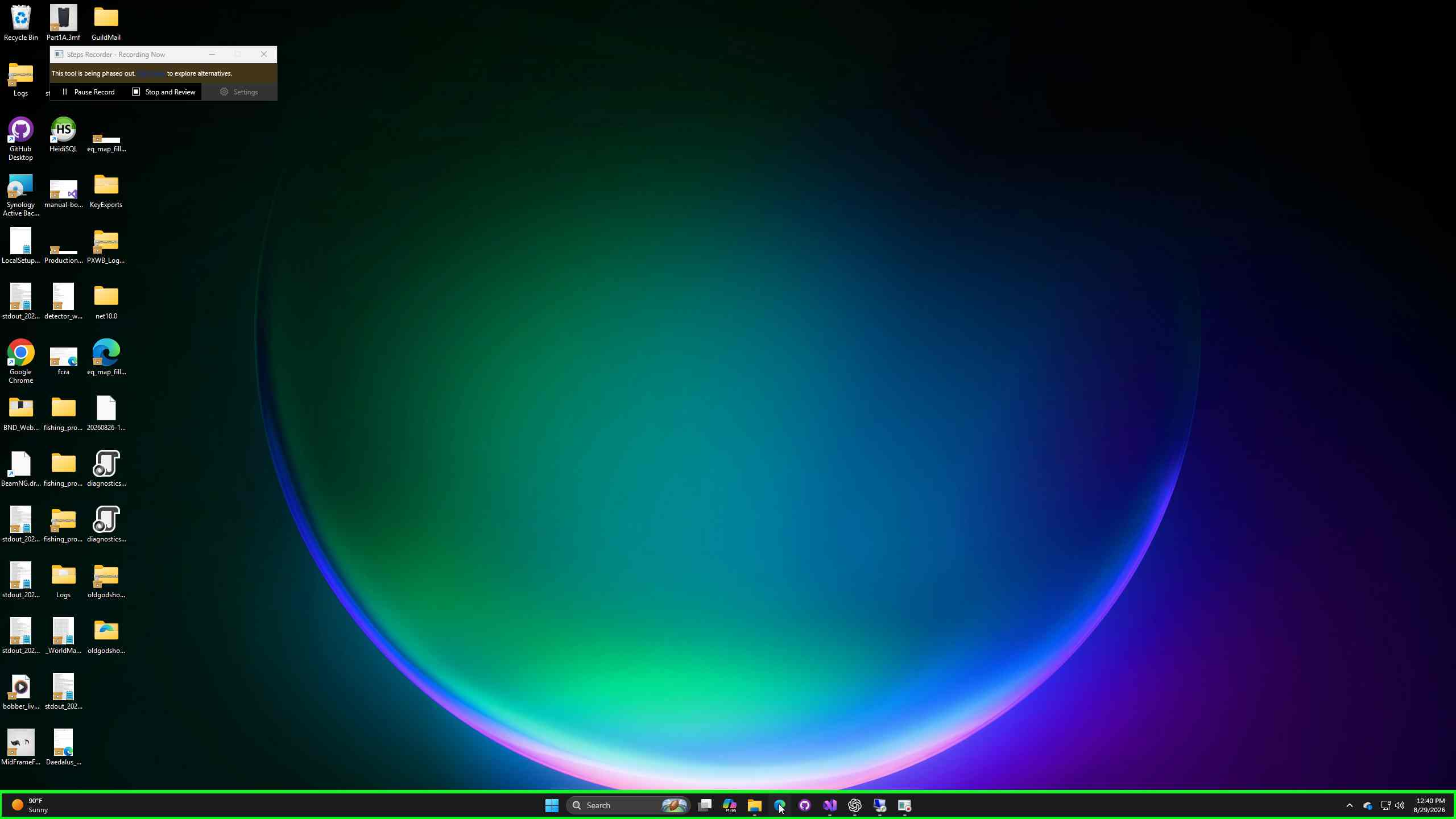
Open the Old Gods website
Visit oldgods.io in your browser.
2
Select Download for Windows
Click the Windows download button. The small setup program downloads the current Companion files.
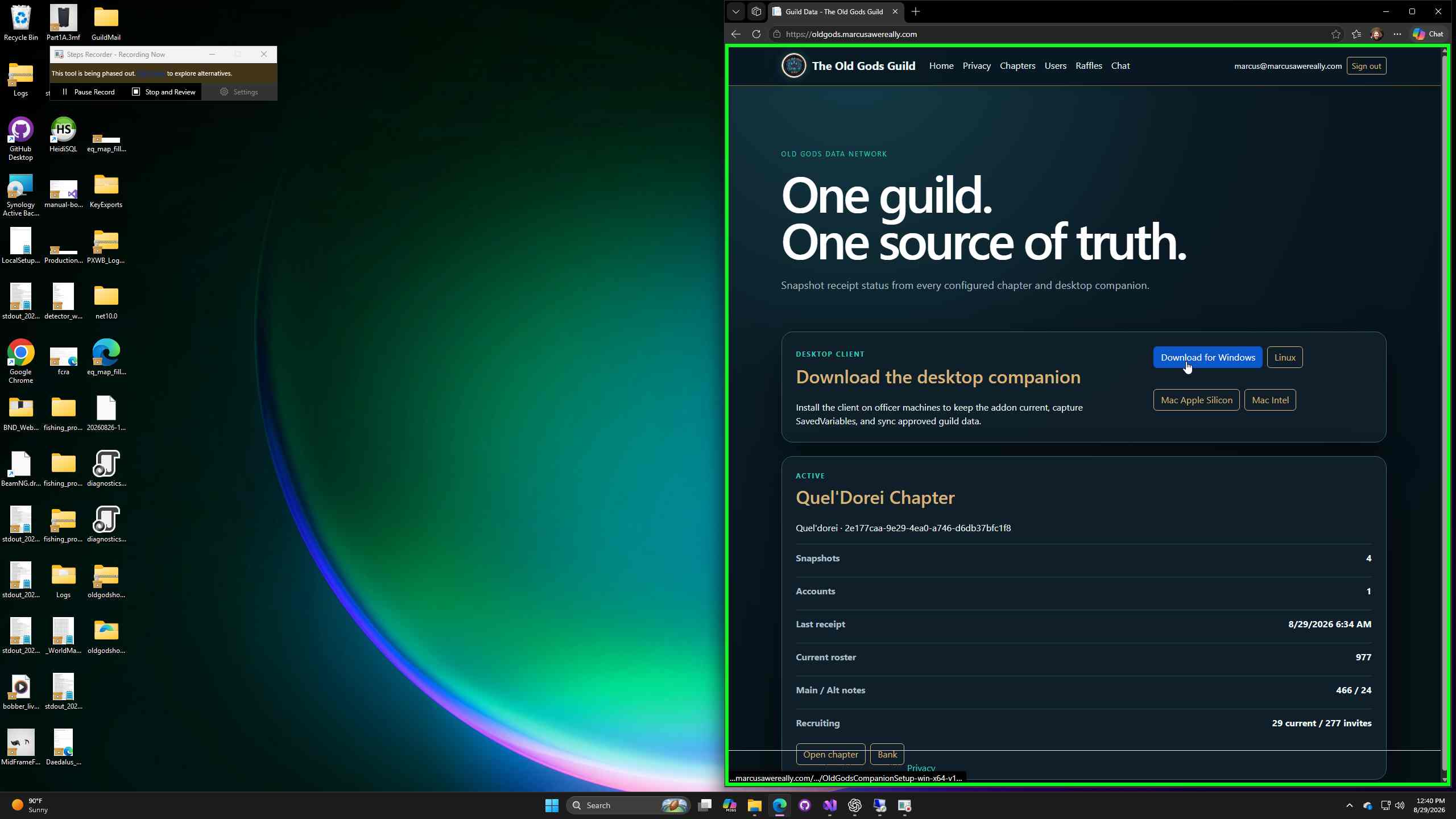
Allow the download
Why might Windows warn me? Early releases may be marked as uncommon until the installer builds a signing reputation. Continue only when the file came from the official Old Gods website. Future signed releases may skip these screens.
3
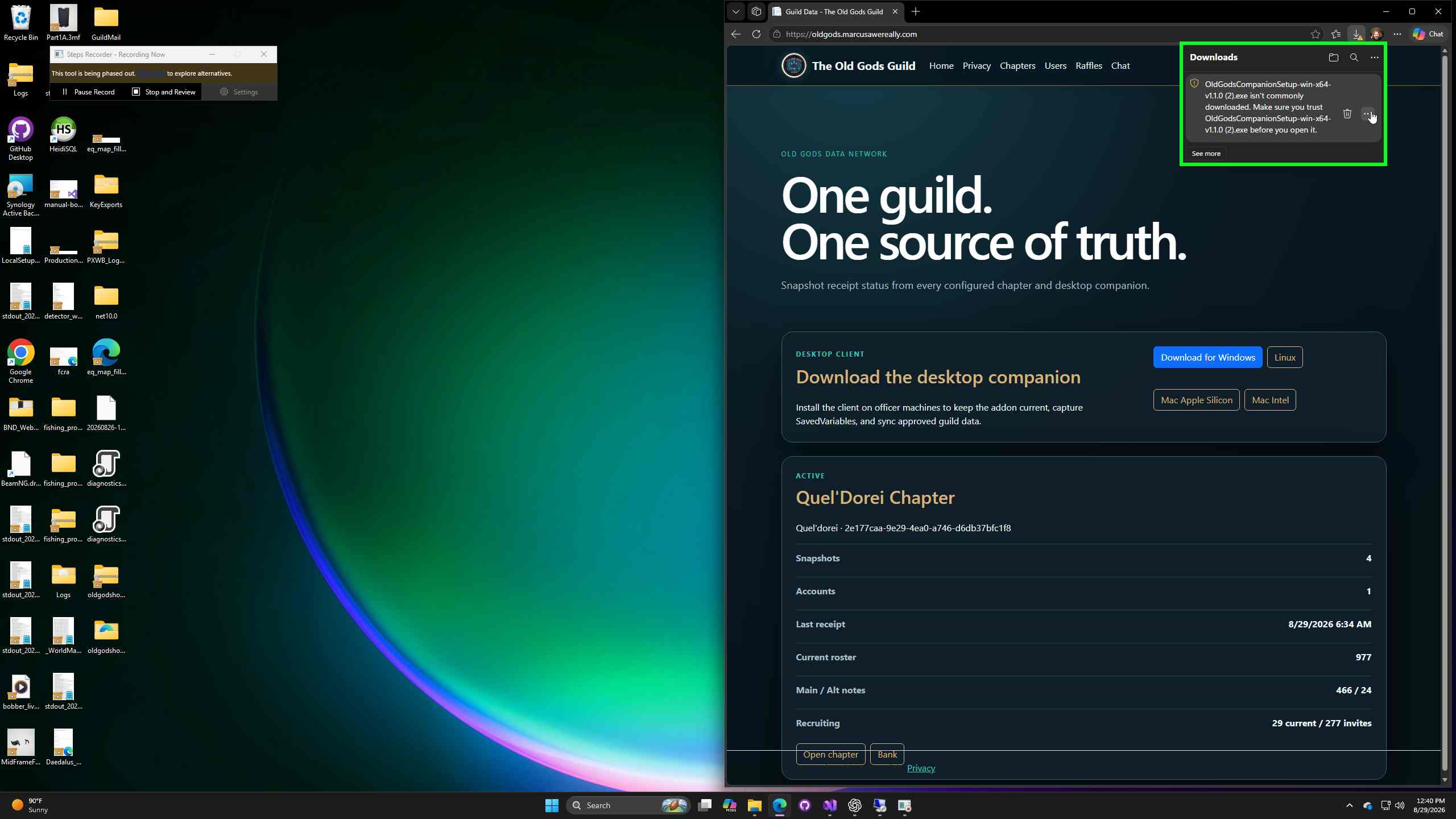
Keep the downloaded file
In Edge Downloads, open More actions, choose Keep, then Keep anyway if asked.
4
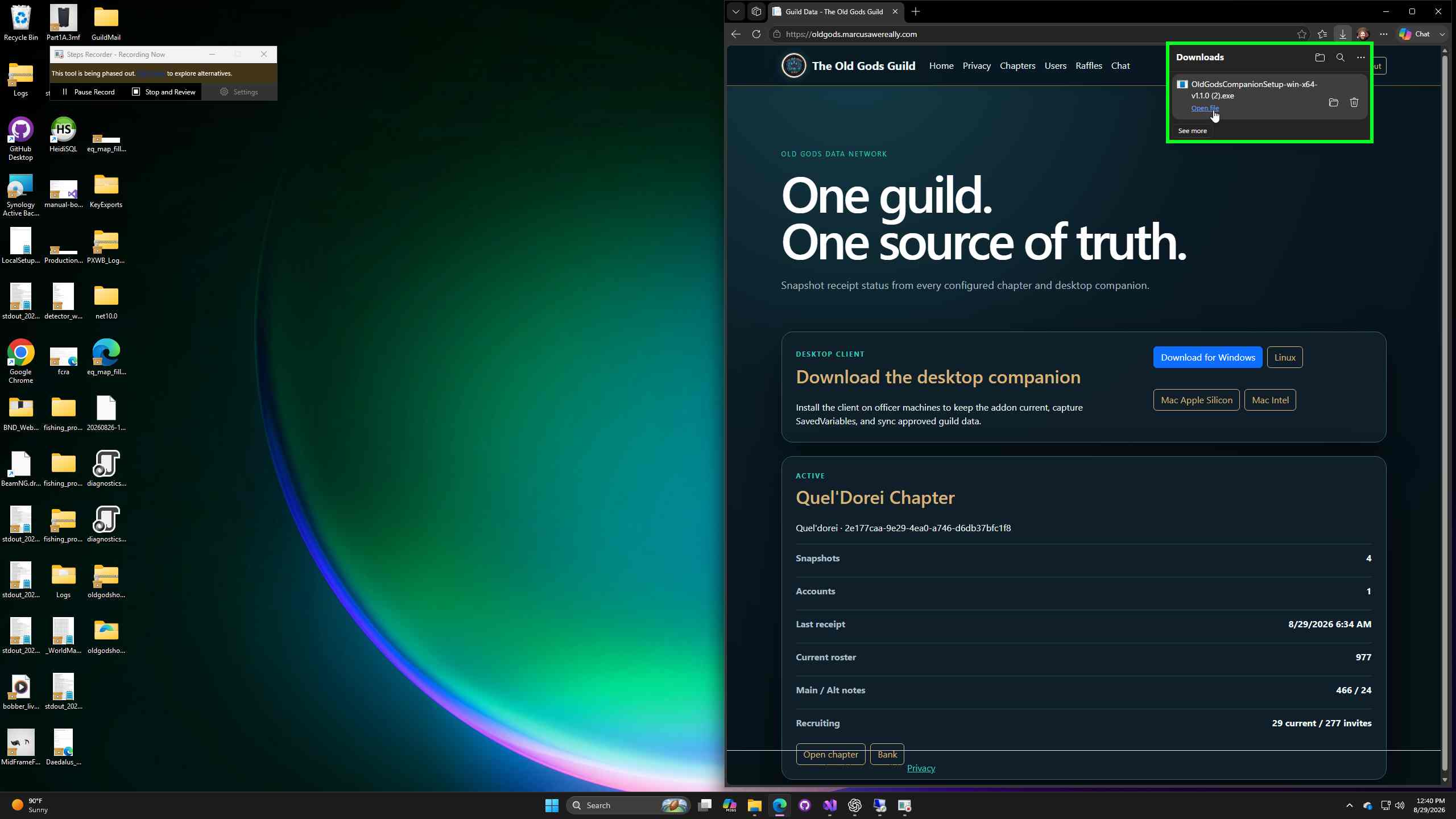
Open the installer
When the download finishes, select Open file. Approve the Windows prompt if one appears.
5
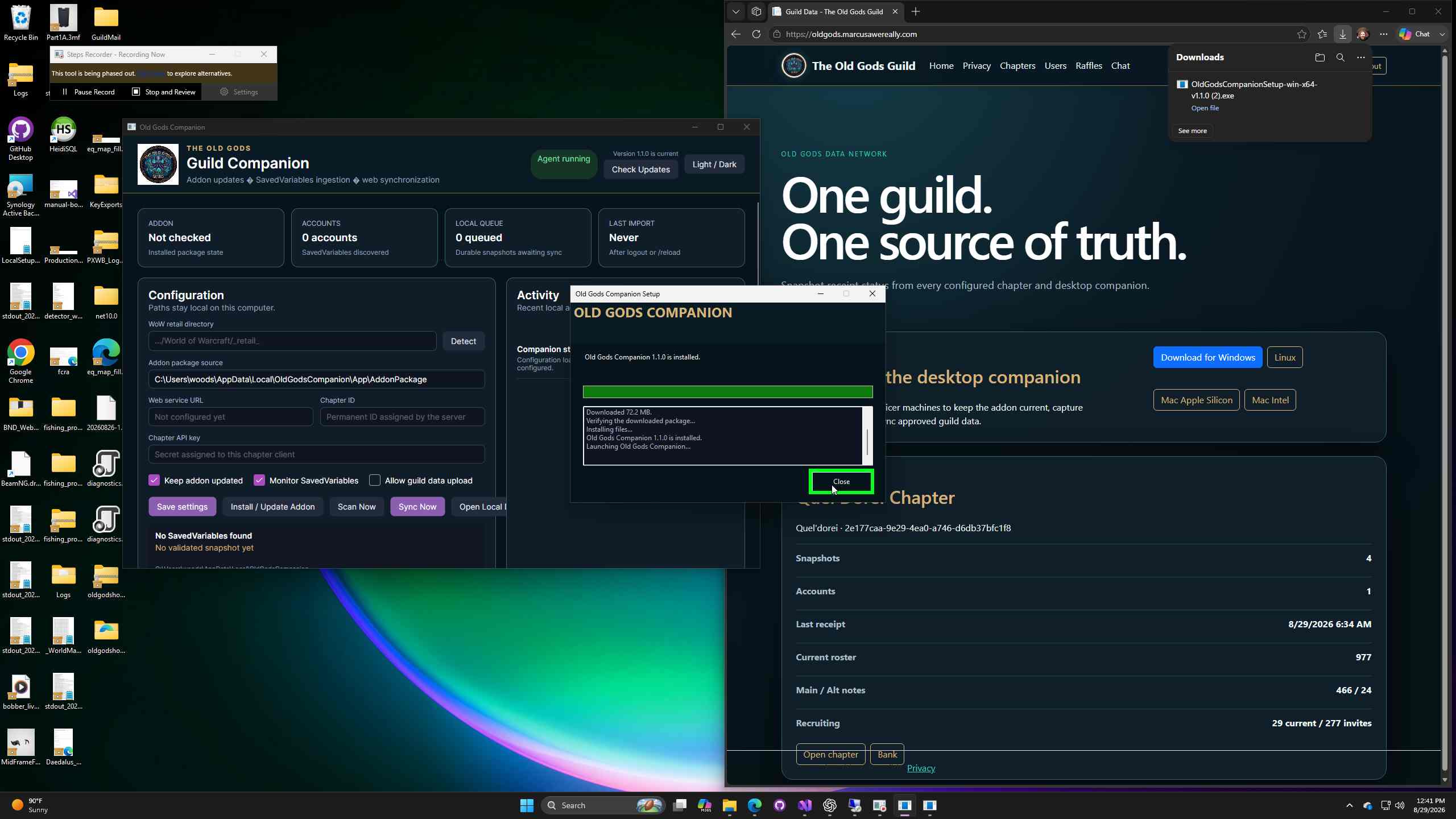
Finish setup
Wait for the progress bar, then click Close. The Guild Companion opens automatically.
Connect the Companion to your chapter
6
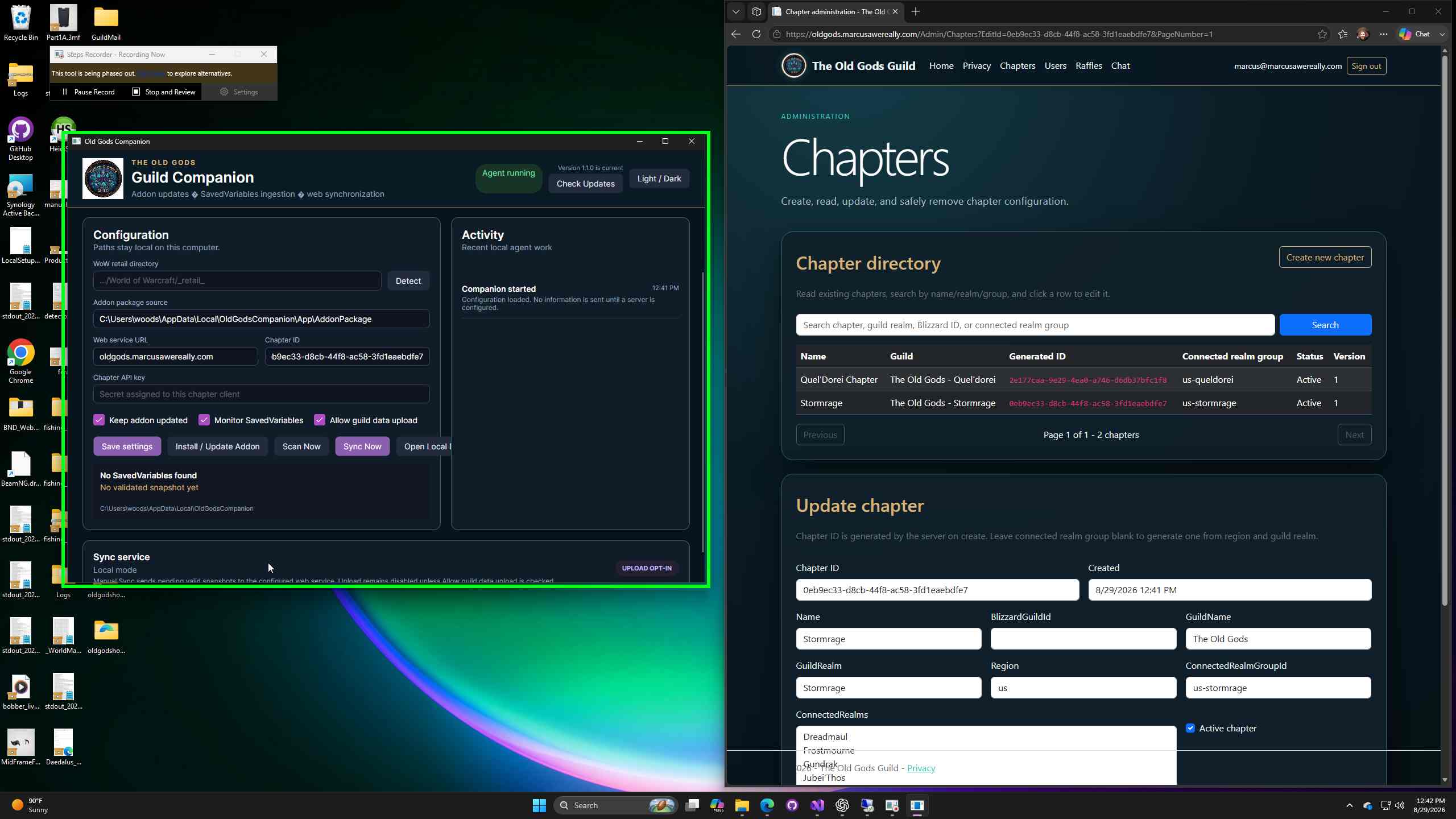
Confirm the WoW folder
The app normally detects the retail WoW directory. If it is wrong, use Detect or enter the folder ending in
World of Warcraft\\_retail_.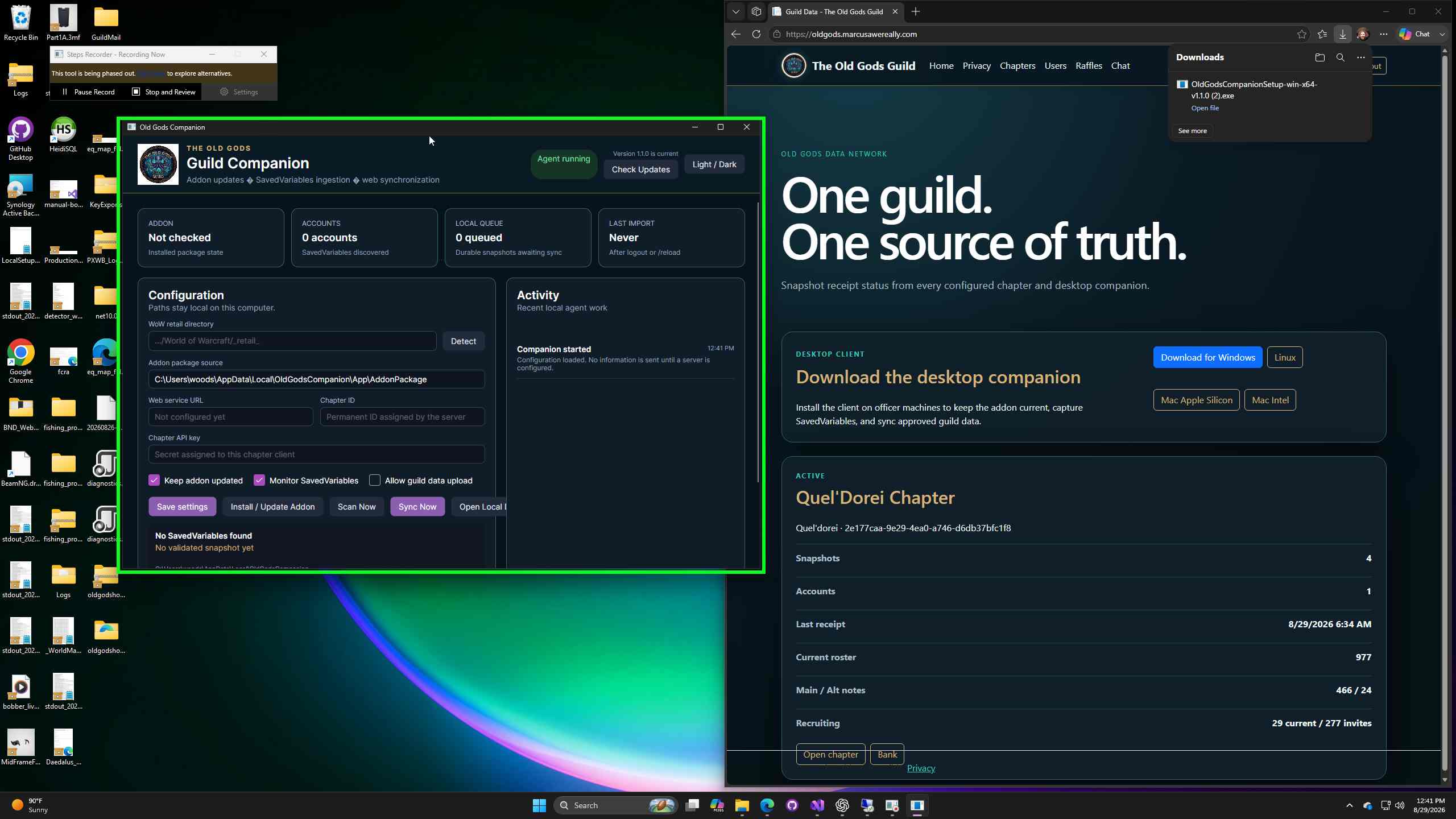
7
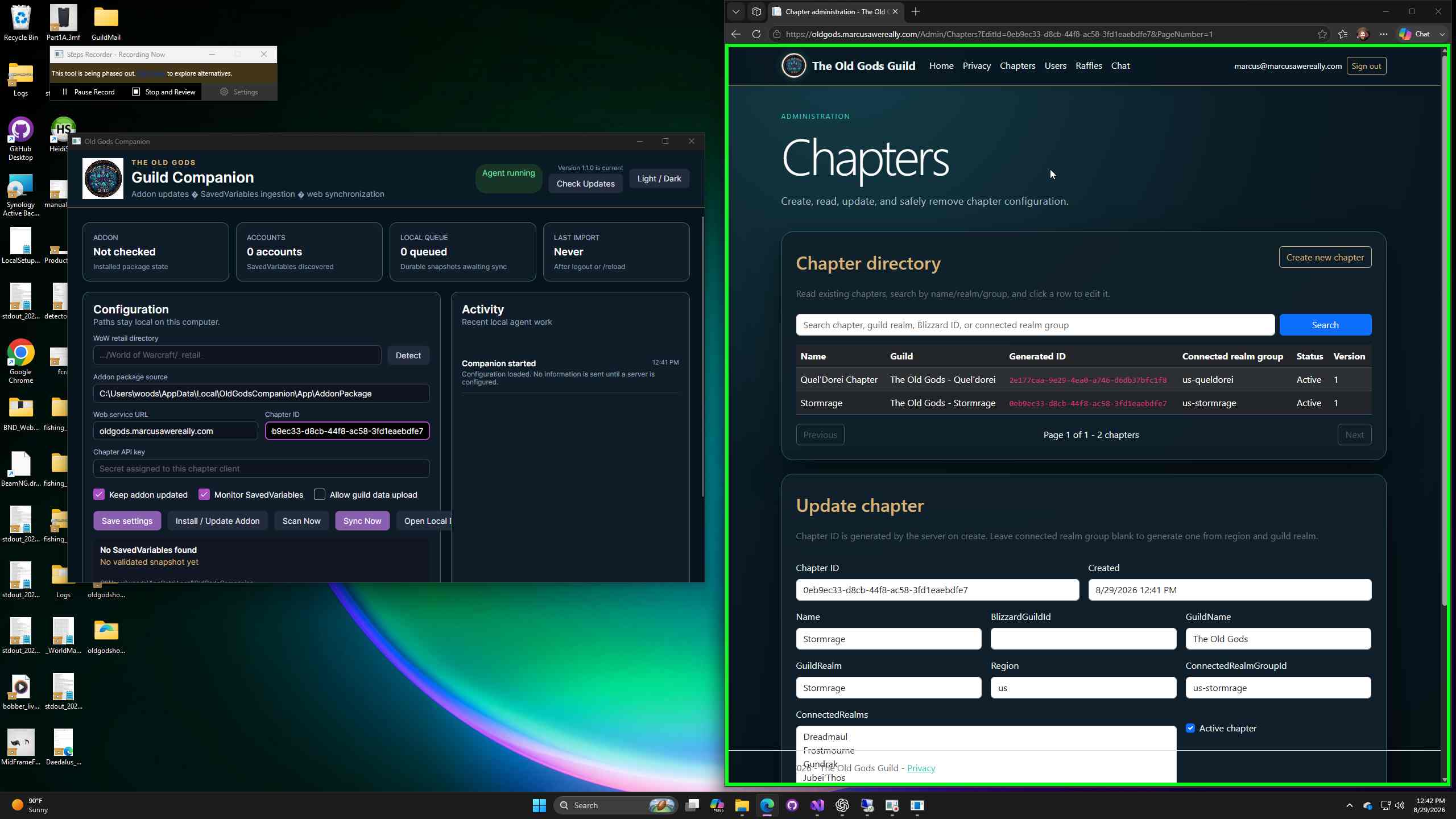
Enter the connection details
- Web service URL:
https://oldgods.io - Chapter ID: your chapter generated ID.
- Chapter API key: the private key supplied by your administrator.
8
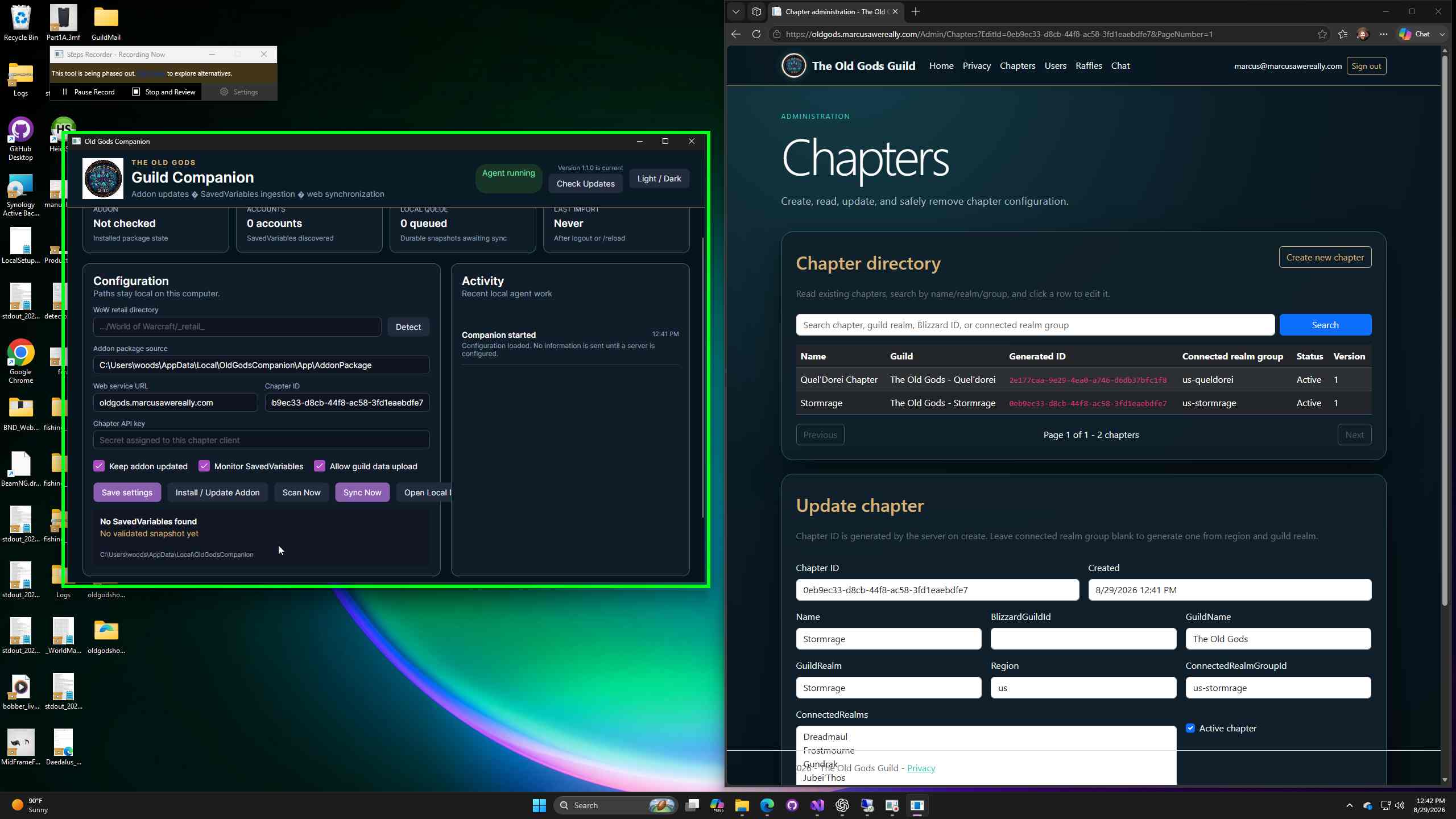
Choose synchronization options
Leave Keep addon updated and Monitor SavedVariables selected. Select Allow guild data upload only when authorized, then click Save settings.
9
Install, scan, and test
- Close World of Warcraft.
- Click Install / Update Addon.
- Open WoW and confirm the addon is enabled.
- After logout or
/reload, click Scan Now. - Use Sync Now to test an authorized upload.
You are ready
Need help? Send your administrator a screenshot of the status and Activity panels. Never include the chapter API key.
Revision 0 · Updated 10/24/2026 7:43 PM by Legacy documentation